
Review of CommonLook PDF Plug-in
This article refers to an outdated version of this product and is maintained here for archival purposes.
Introduction
 CommonLook PDF is a plug-in for Adobe Acrobat Pro DC to create, evaluate, and repair tagged PDF documents—often more efficiently than Acrobat alone. As of April 2020, a license costs around $900/year, with government and educational discounts available. The plug-in is only supported on Windows, and while it can work on files in any language, the software itself is only available in English.
CommonLook also offers CommonLook Office for Word and PowerPoint and CommonLook Clarity to evaluate and monitor PDF accessibility (not reviewed in this article).
Not an Acrobat replacement
PDF accessibility is primarily focused on aligning the file's tag structure with the visual presentation, and this is what CommonLook does well. However, you must use Acrobat to add tags to an untagged PDF.
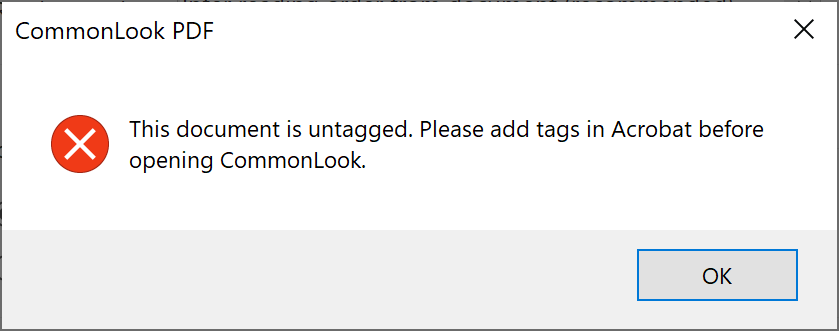
Acrobat is also required for any content changes to a PDF. This is a deliberate decision by the Creators of CommonLook PDF so that their tool will never impact the look or behavior of a PDF. These content changes include running optical character recognition (OCR) on PDFs that do not contain real text, adding links, and creating fillable forms.
It is also a good idea to repair the content order of a PDF using Acrobat's Reading Order tool and Order pane. The content order determines how the PDF will be displayed when viewed using "Reflow" in on desktop or "Reading Mode" on mobile.
Important
Make all content changes in Acrobat before running CommonLook PDF.
Tools and Features
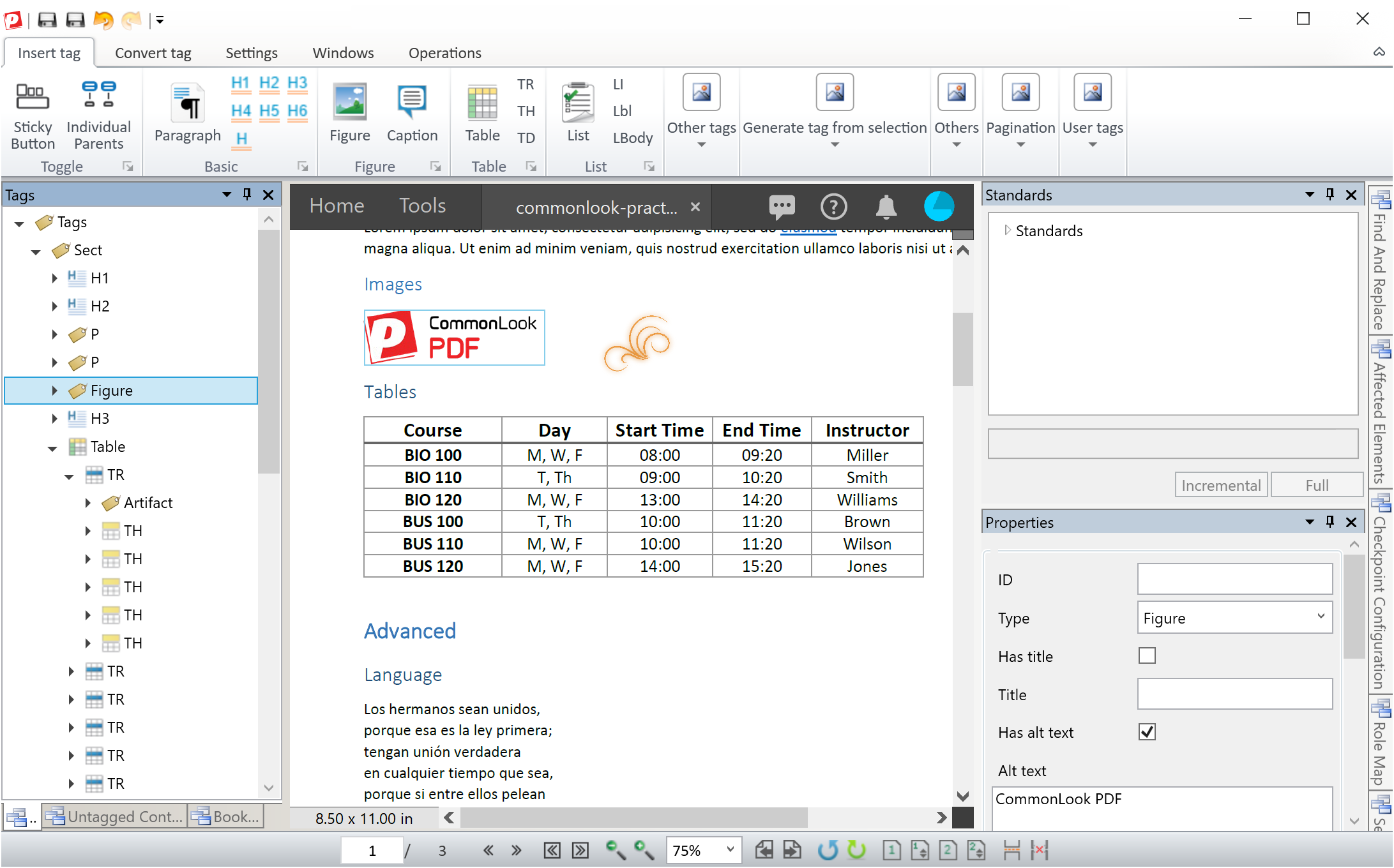
To get started, Open Acrobat, open the desired PDF, then select in the software menu. Menu options are presented at the top, tags on the left side, the PDF in the center, and other toolbars on the right. Most panels can be undocked and moved, even to a different screen.
Tip
Pressing Ctrl + Tab will show a list of all the panels within CommonLook, making it easy to navigate between areas with a keyboard.
Merging, deleting, reordering, and changing the nesting of tags is easy—much easier than in Acrobat. Below are some of the features that make CommonLook PDF a useful tool.
Properties panel
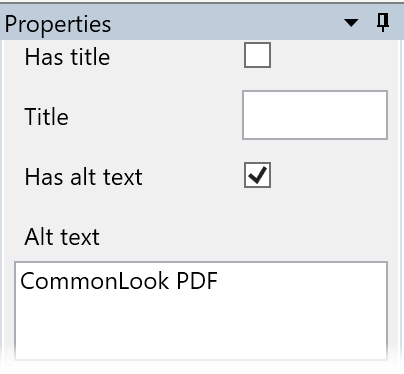
Like Acrobat, selecting a tag in the sidebar will highlight this option in the PDF. Tag properties are grouped conveniently in the lower right corner of the screen. These properties include tag type, title text, alt text, language, and header information for tables.
Tag Similar
can be used to apply the same tag to all blocks of text with the same styling (e.g., the same size, color, and font). For example, if a document contains 40 instances of 18pt blue Arial text that should be second-level heading, tag the first instance with <H2> and then use to tag to the remaining 39 headings with <H2>.
Tables
Editing complex tables in Acrobat can be difficult and time consuming. CommonLook PDF has several tools for working with tables—probably its most valuable features.
Table editor
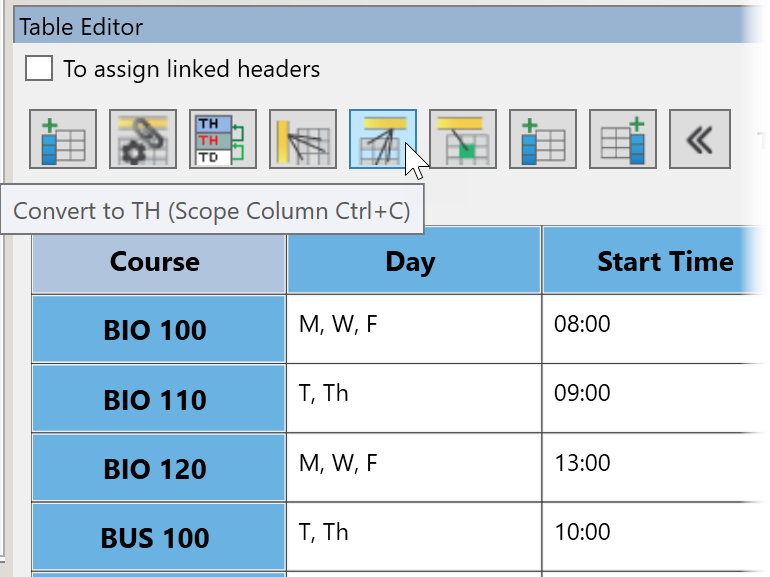
The facilitates quick table evaluation and repair. Features include the ability to specify column and row header scope, change header cells to data cells, insert cells, and to assign or generate "linked headers." There are also buttons to skip to the previous and next tables within the document.
Linearize layout tables
CommonLook PDF includes option an option to linearize layout tables by row or by column, converting each cell to a paragraph and removing extraneous table markup—a task that is very time consuming in Acrobat.
Create lists
CommonLook PDF can quickly create lists. Simply highlight the block of text and select the icon. A similar feature exists to add the correct tags to a table of contents. This saves time over Acrobat alone, which has no tool to create lists—the list structure must be manually added and manipulated within the tags panel, which is a tedious process.
Forms
There are also tools for reviewing and repairing the accessibility of fillable forms. (You must use Acrobat to create fillable forms, because doing so impacts the content.)
Report and Repair
The evaluation tools within CommonLook PDF are robust but somewhat complicated. All relevant PDF accessibility standards are supported including WCAG 2.0 and 2.1, Section 508,and PDF/UA.
To begin evaluating, select a standard from the panel in the upper-right corner, and choose either or report type. Results are displayed in a table docked in the center of the screen, under the main window.
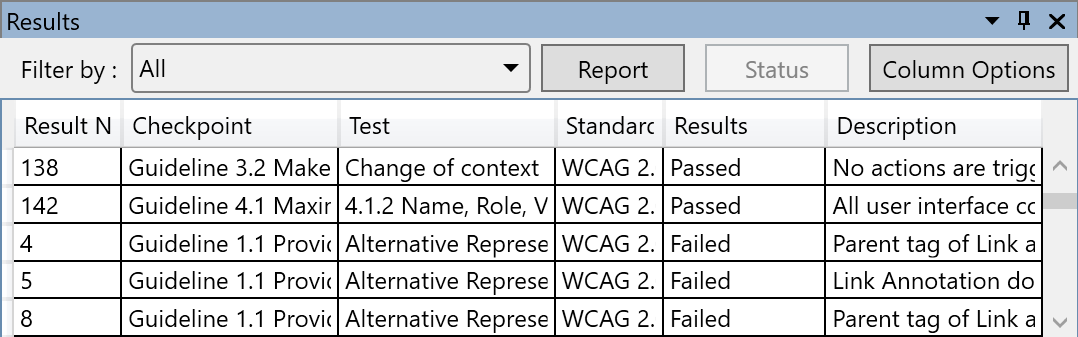
Long descriptions are hard to read without hovering over them and reading the mouse tooltip. This can be tedious at times, but it can often be addressed by changing the table width, removing unnecessary columns, or undocking the table and viewing it on a second screen.
The report is very thorough, bordering on overwhelming. However, the results can be sorted and filtered. Most issues can be resolved by right clicking the issue and selecting . Some will be fixed automatically, but for most, a step-by-step "Fix Wizard" will pop up to walk you through repair.
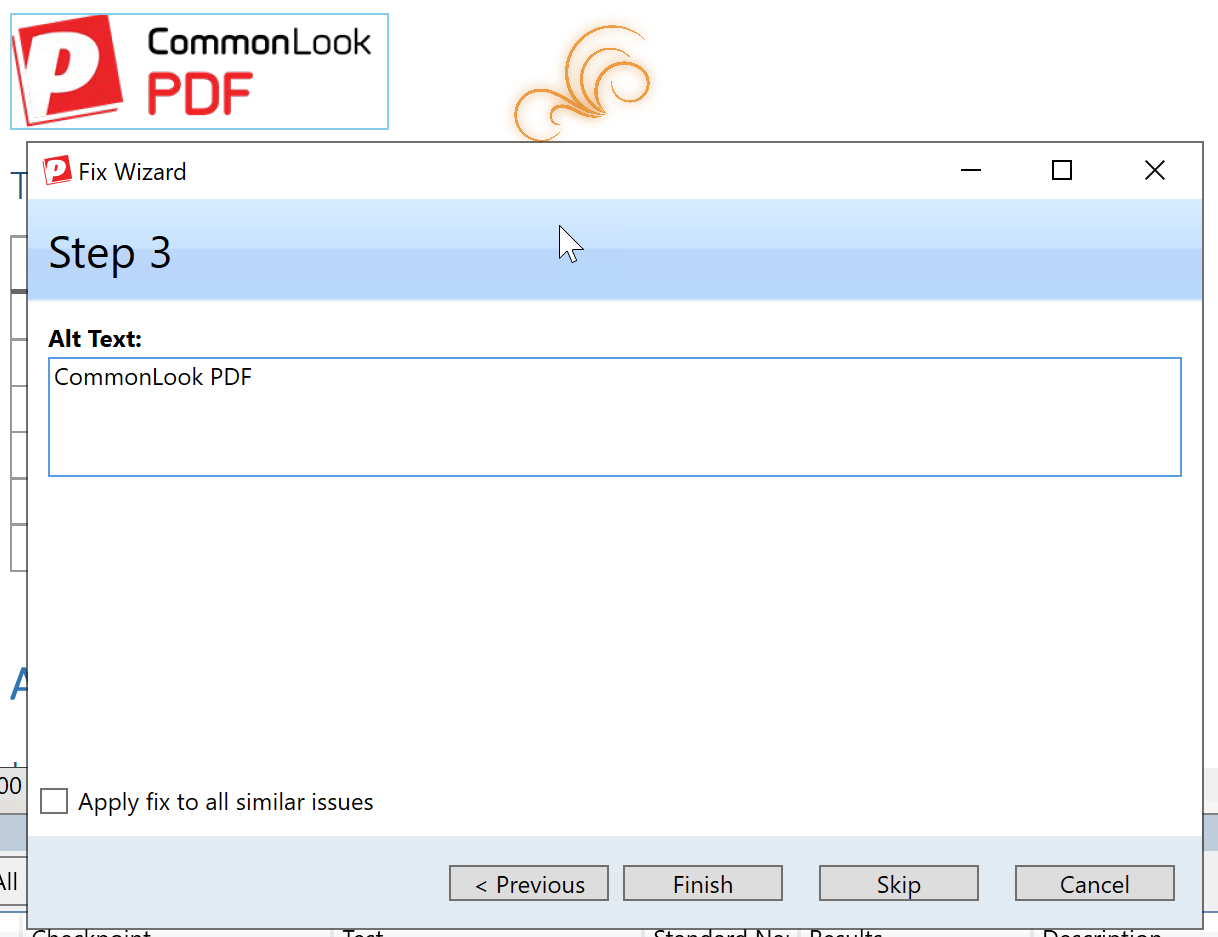
Most fixes have great wizards. The few that involve changes to the file's "content" require you to return to Acrobat.
The checker is very thorough and helpful, but not perfect. Hovering and right-clicking on each issue can be a bit of a nuisance, but this is not a major issue.
The rules and reports seem designed for PDF/UA (a standard primarily for PDF creation) and then modified for WCAG, which is more relevant to content evaluation and repair. For example, PDF/UA requires alternative text for links. WCAG does not, but the tool fails links lacking alternative text. What if you then give a link alternative text to satisfy the checker, but the alternative text does not contain the visible link text (e.g., a link with text of "WCAG" and alternative text of "Web Content Accessibility Guidelines")? This would fail the WCAG 2.1 Label in Name success criterion, but the checker does not flag this.
WCAG results are also organized by guideline, even though WCAG states that success criteria are "to be used where requirements and conformance testing are necessary." Organizing results by success criteria would make it much easier to group similar issues. It would also allow sorting by Level (A, AA, and AAA) and linking to the W3C's PDF Techniques for WCAG 2.0.
Conclusion
CommonLook PDF is very complete for evaluating and repairing a tagged PDF. If your files only require occasional simple repairs that are easy to do in Acrobat, then it might be overkill. However, if you spend even a couple hours a week repairing PDF tags and can handle the up-front costs (both software cost and learning curve), this tool can significantly streamline the process of creating accessible PDF files.