PDF Accessibility
Acrobat X and Accessibility
Article Contents
- Page 1: PDF Accessibility
- Page 2: Converting Documents to PDF
- Current page: Page 3: Acrobat X and Accessibility
- Page 4: Acrobat 7-9 and Accessibility
Introduction
Although you can create accessible PDF files in several programs, Acrobat Professional is required to evaluate, repair, and enhance the accessibility of existing PDF files.
Note
This page outlines accessibility features of Acrobat X. If you are using an earlier version of Acrobat, read the next page on Acrobat 7-9 and accessibility.
What's new in Acrobat X?
There are quite a few new and improved accessibility features in Acrobat X, including the following:
- Introduction of the Action Wizard, which guides users through complex processes, including the creation of accessible PDF files.
- Better conversion from PDF into other formats, especially Word files.
- Improved form field detection. If you create a form in a program like Word, Acrobat does a better job of automatically associating labels to their adjacent form fields.
- Improved keyboard accessibility of the Acrobat interface itself.
- The ability to create accessible PDF Portfolios.
Tags Panel
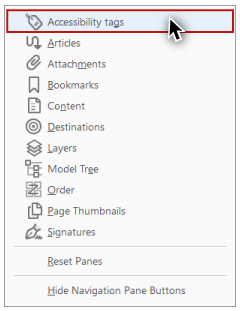
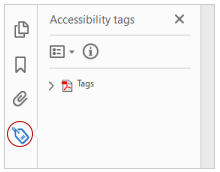
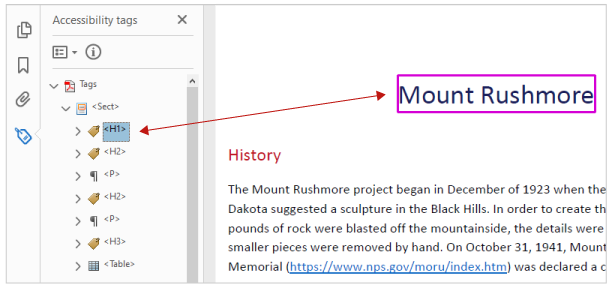
The Tags panel allows you to view, reorder, rename, modify, delete, and create tags. To view the Tags panel, select .
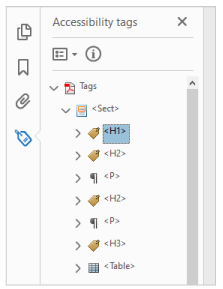
After expanding and , a long list of tags should be visible. The list can be navigated, expanded, and collapsed using a mouse or keyboard.

Many of the tags are similar, if not identical to HTML. Some of these familiar tags are described in the table below:
| Tag | Stands for | Description/Note |
|---|---|---|
<H1> to <H6> |
Heading | |
<P> |
Paragraph | |
<L> |
List | Similar to <ul> or <ol> in HTML |
<LI> |
List Item | Should be nested just as in HTML, which can get very confusing. |
<Table>, <TH>, <TR>, and <TD> |
Table, Table Row, Table Header, Table Data | |
<Figure> |
Figure | Similar to <img> tag in HTML |
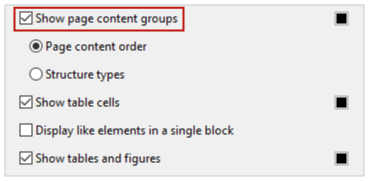
Highlight content
One of the first things you should do in the tags panel is to select the in the (
) menu. When this option is checked, selecting a tag should highlight the corresponding text, image, or other element in the PDF file.

Find Tag From Selection
Just as selecting a tag highlights the content in the body of the PDF file, there is a way to accomplish the opposite effect of highlighting the tag that corresponds to selected content. First, click on the Tool
. Next, select a portion of text, an image, or a table. Finally, select the menu at the top of the panel and then select . This will highlight the tag or tags that contain the content you previously selected.
Change tags
At times, you will encounter a PDF file that contains incorrect tags. You can modify these by right-clicking the tag you want to change by selecting , then the tab, and then selecting the appropriate new tag type from the dropdown list labeled . For example, to change a tag from <Normal> to <H1>, select the <Normal> tag you want to change and do the following: Right click the tag and select and select from the list labeled .

Add tags to an untagged document
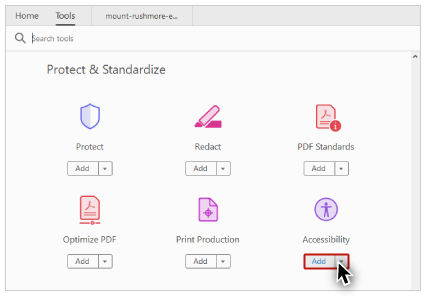
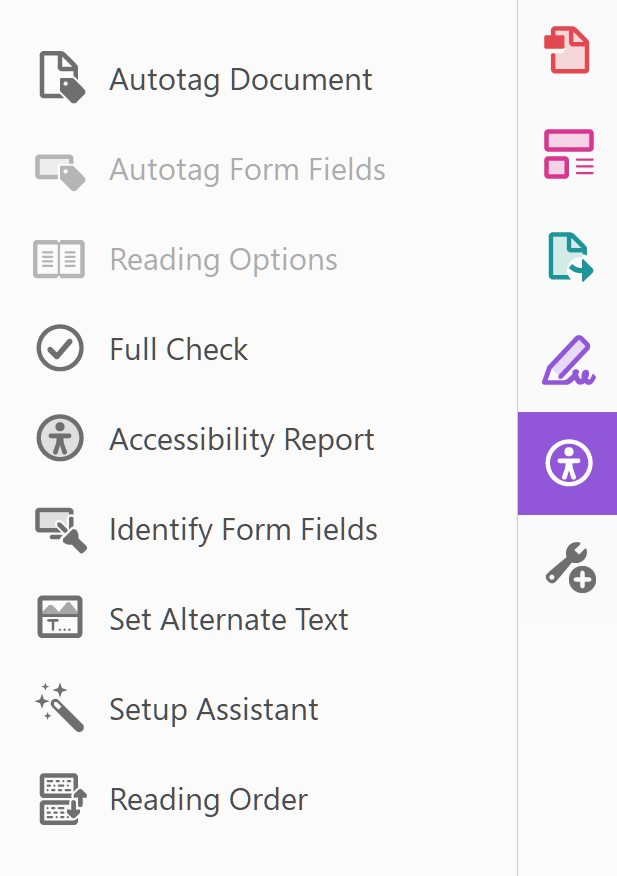
If you do not see any tags in the tags panel, your document is untagged, and you will need to tag the file. To add tags to an untagged document, choose from the right-hand menu, then select . This process can sometimes be extremely time-consuming, and you will almost certainly have to edit some of the tags. Still, it is a start and will probably be faster than doing all the work manually. This is especially true if the document contains tables.
TouchUp Reading Order
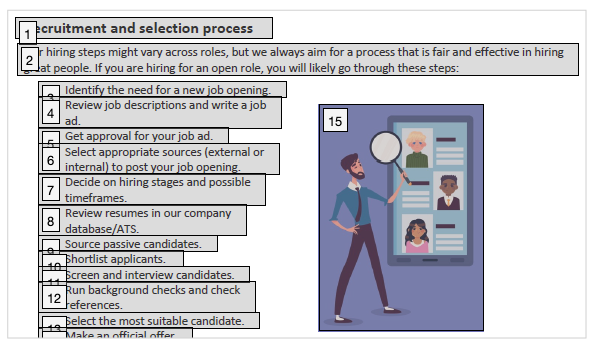
The TouchUp Reading Order tool allows a user to quickly add and edit PDF tags and view the reading order of elements on the page. Although it can speed up the tagging process, it does not take the place of the other tools mentioned previously.
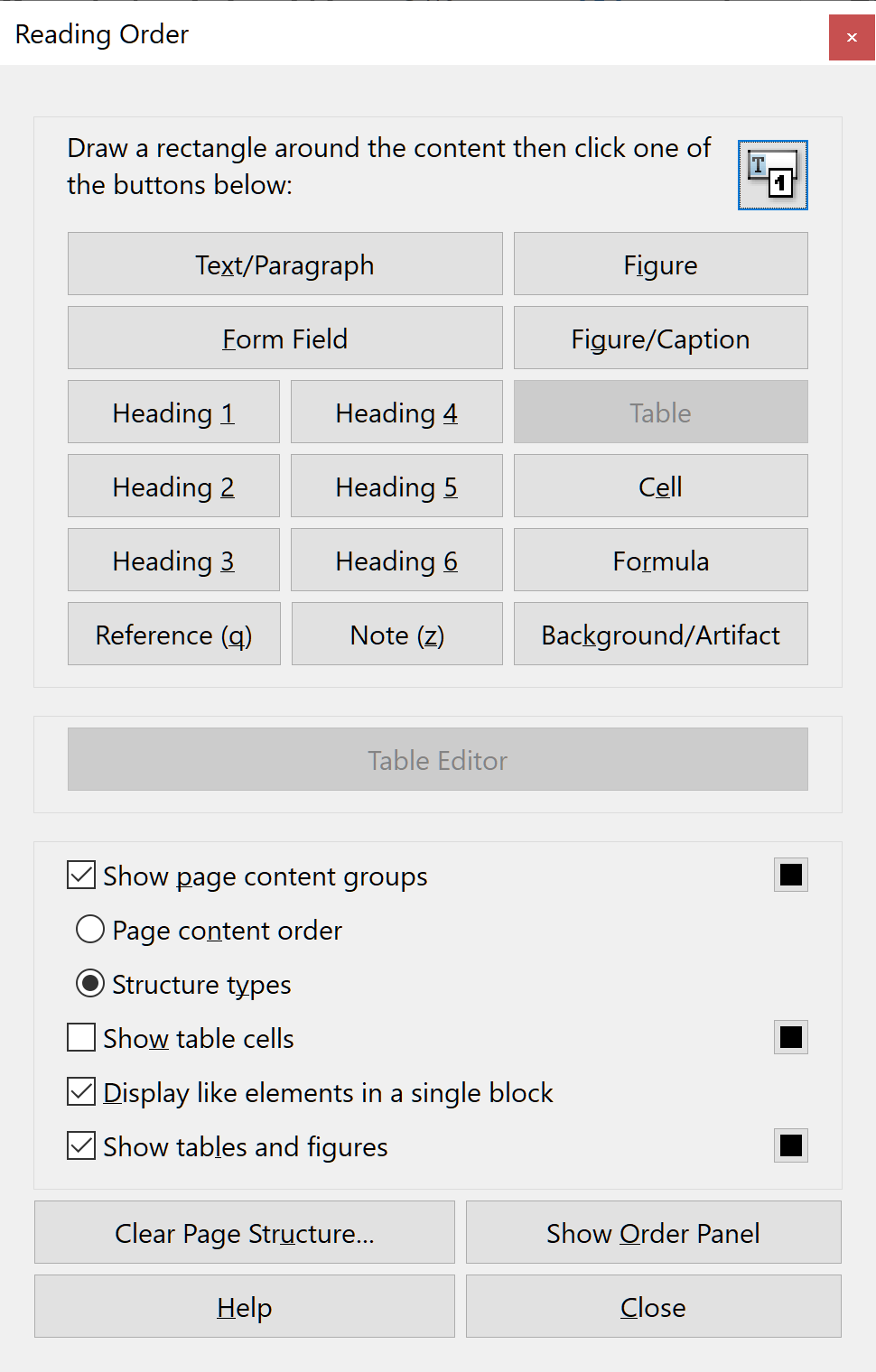
To use the TouchUp Reading Order tool, select from the right-hand menu, then select . When this feature is selected, the view on the screen changes. All of the content is enclosed in numbered boxes. Each of these boxes represent a tag and the number corresponds with the tag number in the panel. The window will also open.

Note
If you have TouchUp Reading Order open and don't see any boxes, your PDF document is probably untagged.
You will notice a group of buttons with the names of several common tags. You can use these buttons to assign tags to a selected block of text or an object.
TouchUp Reading Order is not perfect. Selecting text is difficult and many tags are not supported. It is also somewhat difficult to assign alternate text to images. Still, it is easier to mark up a PDF file using this feature than any other way.
Adding/Changing tags
There are two ways to select an area of text, image, table, or other element using TouchUp Reading Order.
- Drag a box around an element using the crosshairs
that have replaced the default pointer. It is sometimes difficult to select exactly the right area, but it is a little easier if you try drawing a box that is slightly larger than the element. Once you have selected a new element, you can assign some of the most common tags to that element by clicking on one of the several buttons. - You can also select everything within a box by clicking on the number in the top-left corner.
Now that you have selected the text, you can assign a tag by clicking on the corresponding button. Once you select a button, Acrobat will place the selected content in the appropriate tag. If you have the panel open, you can view these changes instantly.
While in TouchUp Reading Order, you can also assign alternate text to images by on the image and choosing .
| Button | Adobe Tag | Additional information |
|---|---|---|
| Text | <P> |
|
| Form Field | <Form> |
|
| Heading 1 | <H1> |
|
| Heading 2 | <H2> |
|
| Heading 3 | <H3> |
|
| Figure | <Figure> |
|
| Figure/Caption | <Figure> <Caption> |
If you select the image and the nearby caption image will be tagged as a figure and the text will be tagged as its caption. |
| Table | <Table>, <TR>,
<TH>, and <TD> |
Acrobat attempts to assign rows, columns, and headings. Sometimes it does this correctly, but this should still be checked with the table inspector. |
| Cell | <TD> |
Can be used to merge cells if they are incorrectly split. |
| Formula | <Formula> |
|
| Background | none | Also called an artifact, this will hide an item completely from a screen reader. |
Order Panel
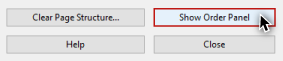
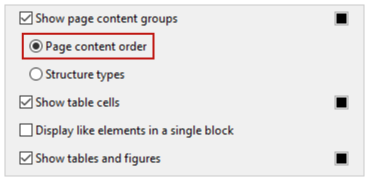
The order panel allows you to change the reading order of the content on the page so it matches the visual reading order. To open the Order panel, select or or select in the TouchUp Reading Order tool.

At first glance, it resembles the panel, but there are a few differences.
- The document is divided into pages.
- Each element is numbered, and the numbers start over on each page.
- There is no hierarchy of elements; everything is on the same level.
These differences help make the panel a much easier way to reorder tags. To change the reading order of an element, just click and drag the tag to the location that reflects the correct reading order. This new order will be reflected in the Tags panel and when the document is viewed in Reflow mode.
Alternative text
The easiest way to add alternative text is with the TouchUp Reading Order tool. When an image is tagged as an image (or figure), the alternative text will appear next to the image. If it has no alternative text, the caption will read "Figure - No alternate text exists."

To add alternative text, on the image and select . Enter the appropriate alternative text in the dialog box.
Table Inspector
The Table Inspector allows you to easily identify and assign scope to table headers.
With the TouchUp Reading Order tool open, select a table and then select Table Inspector. You can now select table cells that should be headers. on a selected cell or cells and choose . A dialog box will appear.

If the selected cell(s) needs to be tagged as a header, select the option and assign a scope of either or . After selecting , you will notice that the table header cells will be highlighted in red and the data cells will be highlighted in gray.

Artifacts
Artifacts are elements that are ignored by a screen reader, much like an image with empty alternative text in HTML is ignored. Important text should never be labeled as an artifact. As with alternative text, the easiest way to change an element to or from an artifact is with the TouchUp Reading Order tool. Select the element and press the button to make it an artifact.
To search for artifacts, go to the panel and select . A window will appear with several search options. Artifact is the default search, so click . If there are any artifacts, the search will identify them and allow you to change them to other elements.
To change a tag to an artifact in the tags panel, on the item and select .
Other Tools and Features
Convert Scanned Text
Before you can create a tagged PDF, you must first ensure that the PDF contains real text. If it does not, you must either reconvert it to Acrobat (if you have the original file) or convert it to text. To convert the document, select in the right-hand column, then select . The quality of the text depends on the quality of the source document. The conversion is usually fairly good, but you should probably clean up the document by selecting in the submenu.
Quick Check
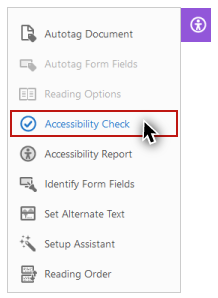
Acrobat Professional includes two different Accessibility Checks. The first, the Quick Check, is not as helpful as it might sound. The Quick Check basically tells you whether the file has tags or not. It doesn't identify even the most basic errors, such as missing alternate text. To run a Quick Check select in the right-hand column, then .
Full Check
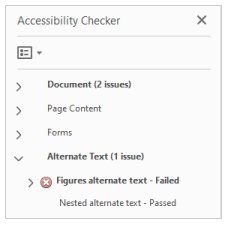
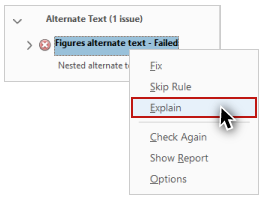
The Advanced Check ( in the right-hand column, > ) is a more detailed accessibility check. Although it is more complete than the Quick Check, it is far from complete. Still, it identifies features such as missing alternate text and offers hints on how to repair some errors.
Reflow
As with HTML, a screen reader will read a PDF document by the order of its tags, but the order of the tags in a PDF may not be the same as the visual reading order. This is especially likely if the PDF contains multiple columns or other blocks of text or complex nested lists. The Reflow Tool will allow you to see the visual order of the document’s content as determined by the order of the tags.
Select or Ctrl + 4. If the document does not appear in the correct order while in Reflow view, the order of the tags will need to be changed.
Read Out Loud
Read Out Loud is a voice synthesizer that is available in Adobe Reader and Acrobat. It allows you to have the content of a PDF document read to you, approximating what a screen reader user might encounter. For more information, see the Read Out Loud section in the WebAIM article on Adobe Reader.
Action Wizard
One of the most exciting new features in Acrobat X is the Action Wizard. It helps automate multi-step processes, like the creation of an Accessible PDF. The Action Wizard will not make an inaccessible PDF file accessible, but it will help guide you through the necessary steps to ensure that the content is accessible.
To use the action wizard to create an accessible PDF file, select in the right-hand column, then select . The wizard will guide you through five steps:
- Add Document Description
- Instructions
- Remove Hidden Information
- Add Tags to Document
- Accessibility Check (Full)

If each of these steps is completed successfully, the final PDF should be accessible. Custom Action Wizards can also be created (e.g., scanned document to accessible PDF).