
Semantic Structure: Regions, Headings, and Lists
The Nature of HTML
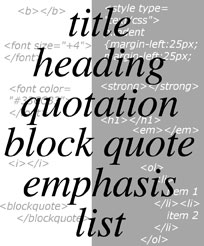 The originators of HTML—particle physicists sharing documents—had no interest in fluffy visuals. They set out to create a World Wide Web of machine-readable pages to display in every system and browser, including those that spoke text to visually-impaired users. The result was a library of documents that only machines (or particle physicists) would want to read.
As the Web grew, the lack of visual emphasis led designers to stress over trying to get pages to look a certain way, which in turn pressured browser developers to create proprietary visual and layout features and extensions that strayed from HTML standards.
For example, designers might avoid heading elements (<h1>, <h2>, and so on) because they lack subtlety: Unmodified, they can look absurdly large (<h1>, <h2>) or ridiculously small (<h5>, <h6>). They were not created with visual design in mind. Their sole purpose is to define a nested structure content hierarchy so that humans and machines can infer information structure. Only incidentally did browser developers impose default font sizes and strengths on heading elements.
CSS filled the gap by allowing designers to define visual presentation without harming underlying semantics and structure, which is what screen readers and other assistive technologies primarily rely on.
Regions
Most pages have a visual structure with a block of content (typically logo, navigation, search, etc.) at the top, a main content area, a footer, and sometimes sidebars with related information. Page regions such as <header>, <nav>, <main>, <aside>, and <footer> programmatically define the essential semantic structure of a page. Screen reader users can easily navigate among these major page areas. The same can be achieved with equivalent ARIA landmark roles. The terms "region" and "landmark" are often used synonymously.
We recommend every page have one <main> element (or <div role="main">). Most pages also have only one <header> and <footer>. <header>, <main>, and <footer> must be direct children of <body> to be exposed to screen readers. They cannot be nested within other container elements. All page content must be contained in a region.
The <nav> region should usually be applied only to the primary navigation. It is not helpful to wrap every link or list of links in a <nav> element. Since users typically expect <footer> regions to include links, it is not necessary to use <nav> within <footer> either.
On sites with deep content, it may be helpful to use a second <nav> on interior pages for secondary navigation—for example, navigation within a certain content category or department. In this case, each <nav> element should be differentiated with aria-label; for example, <nav aria-label="Primary Navigation">. If the <nav> begins with a heading, aria-labelledby can be used to label the <nav> with that heading.
<section> and <article> can be useful to contain blocks of content. They do not function as regions unless they are given an ARIA label, but this is rarely useful.
Headings
A heading describes the content that follows it, much like a news headline. When arriving at a new page, sighted users gravitate toward headings to quickly find what they want on the page. Screen reader and other assistive technology users can also skip from heading to heading.
To reveal the structure of a page, submit a URL in WAVE and then select the Structure tab in the sidebar of the resulting page.
Headings create an outline for the page, similar to a term paper outline or table of contents. The <h1> describes the page as a whole (and should be similar to the page <title>). A page should typically have only one <h1>. Headings <h2> through <h6> represent increasing degrees of "indentation" in our conceptual "outline". As such, it does not make sense to skip heading levels, such as from <h2> to <h4>, going down the page. Here is an example of content hierarchy with corresponding heading levels:
See our Headings article for more details on proper implementation of headings.
Lists
HTML lists (<ul>, <ol>, and <dl>) also convey a hierarchical content structure.
Unordered lists (<ul>) are for content having no order of sequence or importance. List items are typically prepended with a bullet, although this can be overridden with CSS if desired.
Ordered lists (<ol>) suggest sequence, order, or ranking. List items are typically prepended with a number, letter, Roman numeral, etc.
Description lists (<dl>) are for key:value pairs, such as terms and definitions in a glossary or questions and answers in a FAQ. Terms (<dt>) are typically bold, while descriptions (<dd>) are typically normal weight and indented.
List structure should be used wherever a logical list is present, and nowhere else. Don't merely create something that looks like a list by starting each paragraph with a bullet character. Likewise, don't apply list structure to elements that do not logically form a list.
Example: Shortbread Recipe
This example uses a recipe to demonstrate all three types of lists. The ingredients are in an unordered list, the directions are in an ordered list, and two terms are defined in a description list:
- 1 cup softened butter
- ½ cup sugar
- 2½ cups flour
- Heat the oven to 300 F (150 C).
- Cream the butter and sugar.
- Gradually stir flour into the creamed mixture until well blended.
- Spread or pat the dough in the bottom of an ungreased 9x13 baking pan.
- Bake for 30 to 40 minutes, until just lightly browned.
- Remove from oven and immediately pierce all over with a fork.
- Softened butter
- Butter left at room temperature for approximately 20 minutes.
- Cream butter and sugar
- Mix butter and sugar together until it is light and fluffy.