
Screen readers and my HP laptop have never been friends. JAWS causes major stability issues. Window Eyes stutters a lot. Now that I have an Intel-based Mac with Parallels and Boot Camp for running Windows, I have found the perfect screen reader testing system.
Parallels is a program that allows Windows to run within a window under OSX. Boot Camp allows you to boot into Windows on a Mac computer. Both of these applications work with Intel-based Macs only and support the most popular screen readers – JAWS and Window Eyes. Below are a few tips to ensure they install and function well.
Disclaimer: You must have up-to-date screen readers (tested with JAWS 8.0 and Window Eyes 6.1 demos), Parallels (build 3214 – June 21, 2007), and Boot Camp (1.3 Beta). Older versions are not fully compatible with each other.
Parallels
Parallels rocks! The ability to run Windows within OSX is awesome. Parallels retails for $80. it will allocate part of your hard drive for a virtual machine that will house each additional operating system. Parallels will even automate the installation of Windows onto this virtual machine. My installation of Windows XP Professional took about 15 minutes from start to finish (versus 40 minutes or so on an actual PC). To boot into Windows, you simply open Parallels and select Start to boot Windows in an OSX window.
For kicks, I have installed Windows Vista and Ubuntu Linux in other virtual machines. I thoroughly impressed my co-workers by running all four operating systems AT THE SAME TIME! I use Virtue Desktops to quickly switch between operating systems with a quick key press. To totally max out the geek factor, you can turn on motion sensor or light sensor switching in Virtue Desktops. This allows you to switch operating systems with a tap on the side of your laptop monitor (any MacBook, or I should say SmackBook in this case) or by sliding your hand over the light sensor at the top of the keyboard (MacBook Pro only).
Boot Camp
Boot Camp is a (currently) free program from Apple that allows you to boot your Intel Mac into Windows. While this will allow all system resources to be allocated to Windows, it does not allow the instantaneous switching between operating systems. Like Parallels, the installation of Boot Camp is very easy. To boot into Windows, you either select your Start Up disk before rebooting or hold down the option (alt) key when booting.
Screen readers on your Mac
JAWS
You can download the 40 minute mode demo (after 40 minutes, your computer or Parallels virtual machine must be rebooted) of JAWS at http://www.freedomscientific.com/fs_downloads/jaws.asp (54MB). In Parallels, rebooting Windows only takes a few seconds and won’t interfere with anything you’re doing in OSX, so this makes testing with the JAWS demo even easier.
Upon starting JAWS in a Parallels session, you will receive a Video Intercept prompt. Simply press Close. You will need to close this dialog each time JAWS is started. Attempting to install the Video Intercept driver will cause problems. All major junctions in JAWS work without it, although some of the PC Cursor tracking functions may be affected – this should have little or no impact on web page reading. The Video Intercept issue is not present in Boot Camp, which seems to support the JAWS Video Intercept driver natively.
Window Eyes
GW Micro also offers a trial of Window Eyes. It will run for 30 minutes at a time before your computer or virtual machine must be rebooted. It can be downloaded at http://www.gwmicro.com/Window-Eyes/Demo/ (35MB). HINT: If you do not want to enter your personal information, simply disable JavaScript and submit the form to view the download link.
MacBook keyboard mapping
Screen readers have many, as in hundreds, of shortcut keys to allow full keyboard accessibility and to mimic mouse functions. MacBooks do not feature a full-size keyboard, thus many shortcut keys are less accessible. You can always connect an external, full-size USB keyboard or smaller external USB numeric keypad to allow the additional necessary keys – Insert, Backspace, and the numeric keypad keys. This is certainly less convenient because an external keyboard is nearly as big as the MacBook itself.
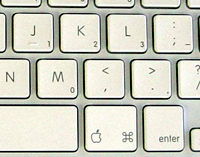 Alternatively, you can use the built-in, though slightly hidden numeric keypad which is available by holding down the fn (function) key and then selecting the appropriate keyboard key. The number pad options display in the lower right of some keyboard keys. For instance, press fn+K for number pad 2.
Despite the availability of the numeric keypad keys, the MacBook keyboard does not have an Insert key. This key, by default, is known as the JAWS key in JAWS and provides access to the most important keyboard shortcuts for using this screen reader. It is also used extensively in Window Eyes. In order to get access to the Insert key in Parallels or Boot Camp, you must remap a MacBook keyboard key to the Insert key command. This can be done with Remapkey.
Remapkey can be downloaded as part of the Windows Server 2003 Resource Kit Tools. Don’t worry, it will install and run just fine on Windows XP. The Resource Kit is a 11.8MB download and when installed, many applications, including remapkey.exe will then be available at c:\Program Files\Windows Resource Kits\Tools.
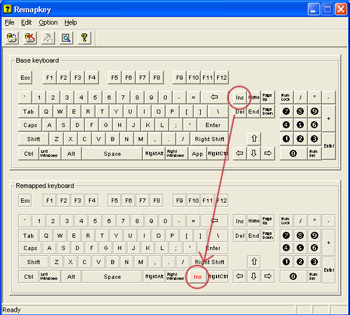 To map an Insert key on your MacBook:
- Open remapkey.exe
- Drag the Ins key from the top keyboard displayed to the App key if using Parallels or to the Right Windows key if in Boot Camp
- Select the Save and Exit button at the top, then restart Windows
This will map Insert to the Right Command (Apple) key on your MacBook keyboard. This is the only key that appears twice (in Windows, both Command key opens the Start menu), but that does not provide otherwise necessary functionality. I have no idea why the Right Command key appears as the App key in Parallels, but the Right Windows key in Boot Camp. This will provide (almost) full keyboard functionality for your screen reader in Windows. You could also map Insert to one of the F key (F11 would work nicely) or remap other keys as you see fit.
Great tutorial Jared! Please note that previous versions of JAWS (e.g. 4.5) will ruin your Windows installation in Parallels for some reason. The video will freak out and I couldn’t find how to uninstall JAWS.
I’ve been running JAWS 8 on VMWare Fusion 1.0b4, and I’m pretty happy with how it’s performing so far. I haven’t run into any of the problems I’ve read about with earlier versions of Parallels, at least. Fusion is going to be priced at $40, and it’s in open beta until it’s released.
Do I dare try my luck with installing them in Vista? 🙂
Beyond dealing with Vista itself, the screen readers should work alright on Vista. While neither JAWS nor Window Eyes is 100% compatible with Vista, you’ll likely not encounter the type of problems the combination might introduce.
Without installing the video intercept, the JAWS cursor functionality and many Windows’ based programs will not read correctly. As you say, the internet browsers aren’t affected. I don’t have a macBook (Envious!) however under Windows, running VMWare Workstation to run guest Windows also works very well, and you can install JAWS and Window Eyes fully with that. Oh and btw, what about trying the screen readers’ laptop keyboard layouts?
Yeah, I figured that the lack of the intercept driver would cause problems elsewhere, but most everything seems to work right in IE and Firefox.
I personally found the laptop layouts overly complex and less documented. The only real issue with the normal keyboard layout that I noticed is the lack of the Insert key and the fact that you have to press function keys a lot to activate other keys (numpad, home, end, backspace, etc.) Also, the default JAWS key for the laptop layout is CAPS LOCK and this didn’t work at all for me on my MacBook for some reason.
Great article Jared. Thanks in particular for the ‘how-to’ with remapping keys. (I need my insert key!)
This is still the same old chestnut. The output from JAWS really can’t be trusted until this issue is resolved, be warned when using form controls etc also.
The issue seems to stem from being unable to find suitable drivers for the graphics card. If anyone can find suitable drivers (and successfully install them – ATI Radeon X1600, please let me know). I have already tried the Catalyst bundle and it still won’t work 🙁
Hi Jared,
Thanks for the article, I was just wondering which Macbook you were using?
A few people reported JAWs was fine on a Macbook (Intel graphics), but not on a Pro (ATI video card), so it’s quite important…
Cheers,
-Alastair
I am using the MacBook, not the MacBook Pro. I’m aware of people that have JAWS working on a MacBook Pro, though there may be problems I’m not aware of.
I have to echo the other comments on here and say this is a great tutorial. I only purchased my power book a month ago, and this is my first experience with Mac, so I’m already a little nervous about doing something wrong, and in particular I’m having some trouble adjusting to a whole new set of lingo. Having some access to Windows will really help by allowing me to transition away from the terminology and functions that I’m used to. But I should also say that, even without a lot of Apple background, I was able to follow your instructions really easily. Perhaps you should get a job in one of the Apple stores, as the people at my local outlet were really not much help at all. They did tell me before I left how to go about installing and using Parallel and Boot Camp, but not in any sort of clear manner.
I’m highly impressed with the article and subsequent responses. This goes a long way toward laying a foundation for understanding the power of intel based Macs. I use boot camp I’m afraid though and am happily using the jaws laptop layout.
Thanks again!
I just got on the Mac bandwagon. Looks like I have a lot to learn from you guys.
-Dan Grosp
CEO
http://www.grosp.com
Hello on fusion the same problem occurs jaws cursor will not work neighther will forms mode. it appears to be a video driver issue. window eyes works perfictly how ever. am using fusion 1.0
Hank’s comment about Fusion and Window-Eyes running well is encouraging to hear. Hank does your Mac with W-E work well?
If anyone else has success on this topic please let us know.
Thanks for the tutorial!
I’ve just one thought: only with MacOs X, screen readers don’t
work, don’t they? They only work with paralel or bootCamp,
isn’t it?
LuÃs-
Correct, JAWS and Window Eyes do not work on the Mac operating system. OSX does have a basic screen reader built into the operating system, though it is not as full featured as JAWS or Window Eyes.
A lot of my students have Mac book and I know this same problem has been causing a lot of hassles in their part. I’m glad that I found your post. I’ll share this information to them and hopefully they can be relieved of their burden.
can i remap the “insert” key on fusion the same way you can on parallel and bootcamp??
After an exhaustive search on-line, this was the only resource I could find to help get my new Mac Book set up to use JAWS. Some Mac/PC tech folks I spoke with didn’t seem to know anything about remapping Mac Books using Parallels. But, I was able to get the insert key within a few minutes of reading this post.
I’m still trying to figure out how to make the caps-lock key work when JAWS is in “laptop mode.” Anybody overcome this issue?
I have Mac OS X 10.5.4 and Parallels Desktop 3.0.5608. I’ve been attempting to install the DEMO version of JAWS (9.0.2152) in Parallels without any luck. I’ve tried on both a fresh install of Windows XP SP2 and SP3 and both will crash before Windows finishes loading.
@Caleb Clauset: I’m having the same problem.
Hi everybody!
First of all, thanks so much for your numerous contributions to this new kind of cross-platform accessibility, especially since you in America and other English-speaking countries seem to be miles ahead of what we are currently in France (at my local Apple store, they didn’t know anything about Mac OS X’s built-in Universal Access features, so I had to show them how to turn on Voiceover with Command + F5…). What’s more: it was the only page I found while searching “install Jaws on Mac” on the World’s leading engines, and I’m glad to hear that Jaws does actually run on most of your MacBook and MacBook Pro machines, though mostly with some restrictions that might prevent blind users like me using it on a full-time basis, i.e. as a 100% replacement for the traditional Windows-based PC.
However, I still got a question and I would be very grateful if you could help me get the best out of nowadays’ assistive technology and keep on improving my work as a translator, even with Windows on a Mac.
I’m currently working both on a Dell notebook running Windows XP SP3 and Jaws 7 – desperately waiting for Jaws 9 to be released in my country – and a 24-inch iMac on a French version of Mac OS X 10.5.5 with Voiceover and the system zoom turned on, using Alex for English contents and Assistiveware’s Infovox iVox voices for French, German and Spanish texts, since Alex is only available in American English for now. Though I’m quite happy with Voiceover to read texts and accessible, well-structured pages like this one, record / work on audio files, make some music on Garage Band, manage a fast-growing, multi-format media library much better than in Winamp, etc., I still can’- get rid of my PC completely, since Voiceover is still unable to read Flash contents, to render complex web sites quickly enough or to handle language recognition on web sites, while Assistiveware’s voices seem to need so many resources that Voiceover would regularly lose track with the keyboard focus and get me to waste some time returning where I originally intended to go. Which makes it a bit hard and tricky to use in a professional environment where time is money.
Therefore, I’m planning to run Jaws on my iMac, either on Windows XP or Vista, depending on which system is supposed to be more reliable and compatible with programs such as Firebox / Internet Explorer, Microsoft Office, Openoffice, etc., and I’d like to know if someone has ever had any experience with an iMac. Otherwise, should I rather sell my PC and buy a MacBook or MacBook Pro instead, as some people say that Windows runs better on these machines, or even consider installing a Linux distribution like Fedora on the iMac, since Linux is also said to be fit for some screen-reading features?
Anyway, just in case, the basic / graphic card specs of my iMac are as follows:
Model ID: iMac 6.1;
Processor / memory: Intel Core 2 Duo running at 2.16 GHz, with 2.5 GB of RAM;
SMC version: 1.10f3;
Graphic card: NVIDIA GeForce 7300 GT;
Built-in 24-inch LCD monitor with Core Image hardware acceleration;
Screen resolution: 1920 x 1200;
Mirror: off.
Thanks in advance for your answers and good luck in making the World of technology a more accessible place to live for all of us!
I installed WIndows using boot campt. No Problem. But when I installed JAWS the video went super low quality. and would not let me change it. It is using 4 bits, and looks like the very first color monitor in like early 90’s. The error message says:
“The currently selected graphics display driver can not be used. It was written for a previous version of Windows, and is no longer compatible with this version of windows. THe system has been started using the default VGA driver… please contact your hardware manufacturer…”
It’s the new MacBook.
David MacDonald
Great write. After searching around a bit, I was glad to see this works. My company bought a new laptop with Vista on it and it turns out Window-Eyes isn’t supported for the 64 bit version on the demo. You can only get it if you have purchased Windows-Eyes. The latest upgrade, I do believe now supports 64 bit. I’ll stick with just the demo. I recently purchased an Imac for home use with Parallels and Window Xp and both Jaws and Windows Eyes runs perfect! Now I’m getting ready to outfit the imac at work with parallels and XP.
Just a note: Both Windows-Eyes and Jaws didn’t initially install correctly. They kept crashing after the reboot. I changed my preferences in Parallels to take a little more memory. Previously the mac people set up Parallels to use only 512 mb. So it was a little scary since this is a brand new mac. I’m outfitted with the new IMAC 2.66ghz and 4 gig of RAM.
Hi guys,
Have just got a new macbook pro and am having the same troubles as many of you with jaws and the capslock key.
Whilst remapping the insert key is a very good idea and I will give it a go, I am so used to using capslock and the laptop layout I’d be very sad to lose it.
Has anyone out there figured out the answer to how to use the capslock key with jaws under vmware fusion or parallels?
Cheers Bart.
Thanks, Jared – this is really helpful. I’ve gone Mac and after installing JAWS in Parallels, got to the video intercept question. Which is when I found this post – very useful, especially keyboard info!
Just a quick update. I have a new MacBook Pro and now have JAWS 11 working splendidly in VMWare Fusion. As noted above, you have to remap INSERT to an available key (I prefer the Right Command key) using remapkey.exe. Note that even if you’re using the laptop configuration in JAWS, you still remap INSERT.
Hello all, I’m a computer science student running into the same problems with jaws and virtual machines. I would love to be able to use the laptop keyboard layout in jaws under vmware because there are instances where I need to use the jaws curser on the fly. Do I really have to go and get a usb numpad?
Rylan-
I have JAWS running fine under VMWare. You need to use remapkey.exe as instructed in the article and in the comment immediately before yours (2 up from this one).
Jared, super thanks for this post. I just got my macbook pro with jaws 11, parallel and xp 64b . In your before last post, you said jaws11 with VMWare fusion is working great. Does that mean you are not having any video intercept issues at all? I need JWF for more than internet apps. Do I have to buy VMWare fusion then? thanks for any answer!
Rachel-
I am not having video intercept issues, but I don’t think the video intercept was ever installed. I don’t really use JAWS outside of the web browser, so I can’t really say if the lack of the video intercept installation might result in issues in other application.
thanks! do you know if the video intercept can be installed when the windows runs through boot camp? I believe that is what I understood from the post above, but I wanted to double check.
Great article. I am a TVI using a MacBook Pro to teach JAWS and Voiceover. I’m going to take your advice and use an external keyboard.
Question. Is there a reference sheet or simple explanation of how to access the internet (specifically Firefox) available? Our younger students are having some trouble with the higher level tutorials available.
Leslie-
We do have an article that covers the basic keyboard and navigation controls – http://webaim.org/articles/jaws/
sir. i think remap key is not accessible for us totally blind so i use sharp keys instead. with vmware fusion3.1, windowsXP, and jaws11. and i also attach a numeric keypad and set the jaws to desktop mode. for the p.c and jaws cursor etc…
hi, what about under windows xp/7, installing say windows 98 and trying to install jaws? is there a way to do that with out assistance? or I am missing something. just got no speech when running vm player or work station and starting the VM. thanks!
I would like to know if JAWS Virtual Cursor Mode is a standard way screen reader user would typically browse with? do you have data around how Virtual cursor mode using JAWS has been used. I mean is it a common phenomenon, widely used, only expert JAWS users use this mode etc. would help.
Hello,
I am a fully blind computer user. Using a Macbook Pro with Intel 3000 Graphics from early 2011.
I am after virtualizing my boot camp installation.
Running Jaws and Nvda as screen readers .
Will I have issues with video intercept and how about nvda?
Is tere any bias regarding parallels vs Vmware i.e will nsany one of these programs be less prone to vdeo chain ad driver issues?
Ouch. I just upgraded from VMWare 3.x to 4.1.1. On my Windows XP VM in VMWare 4.1.1 when running JAWS for the first time, I went with the default choice to install the Video Intercept. Boom! Not a good idea. As in, the VM won’t even boot-up with the Video Intercept on. Had to back down to NO video intercept. Grrrrrrrr. I know video intercept worked in VMWare 3.x. I hope this gets resolved. #sadpanda